
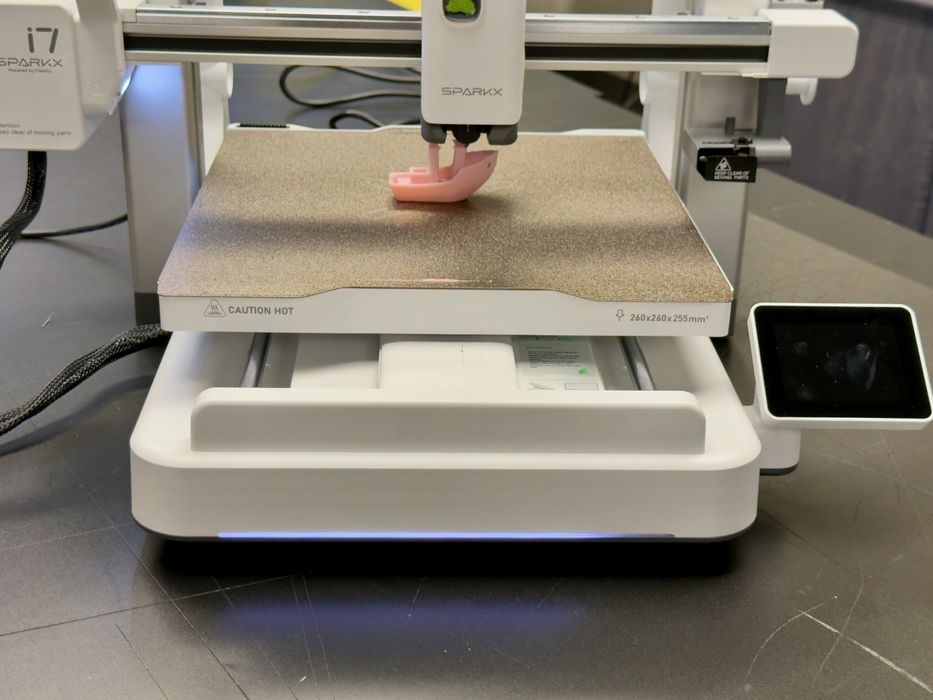
Our review of the SPARKX i7 3D printer continues with a look at unboxing, assembly, calibration and operations.
This is part two of a three-part series; please read parts one and three.
SPARKX i7 3D Printer Unboxing and Assembly
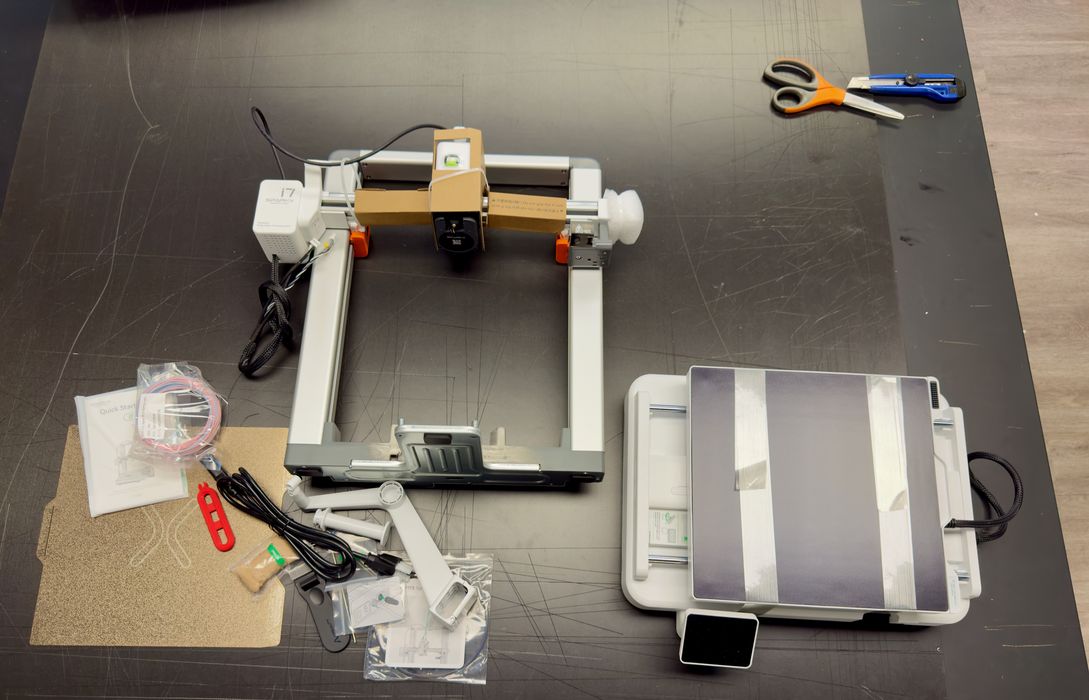
The i7 is shipped as a kit, not because you’re building the machine, but instead as a way to safely reduce the shipping box size. In other words, there is a bit of assembly required. More if you’re going for the CFS nano option, which was the case in my testing.
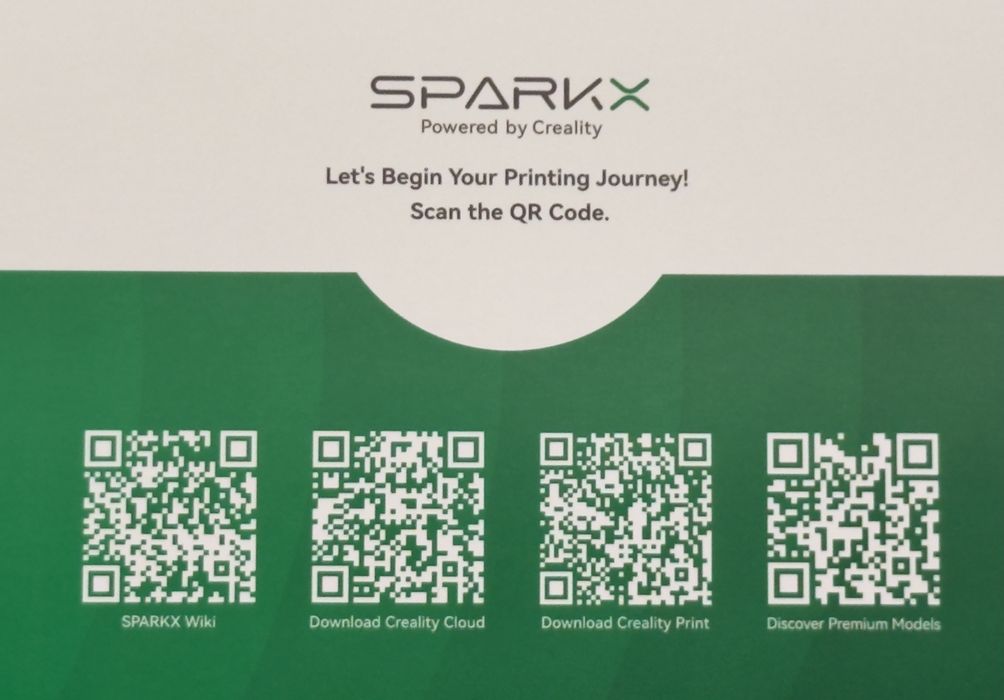
Creality placed a terrific note at the top of the box containing QR codes to immediately send you to any information you might need. You can quickly get the required software, access the machine’s online Wiki, and even download some 3D models to print.
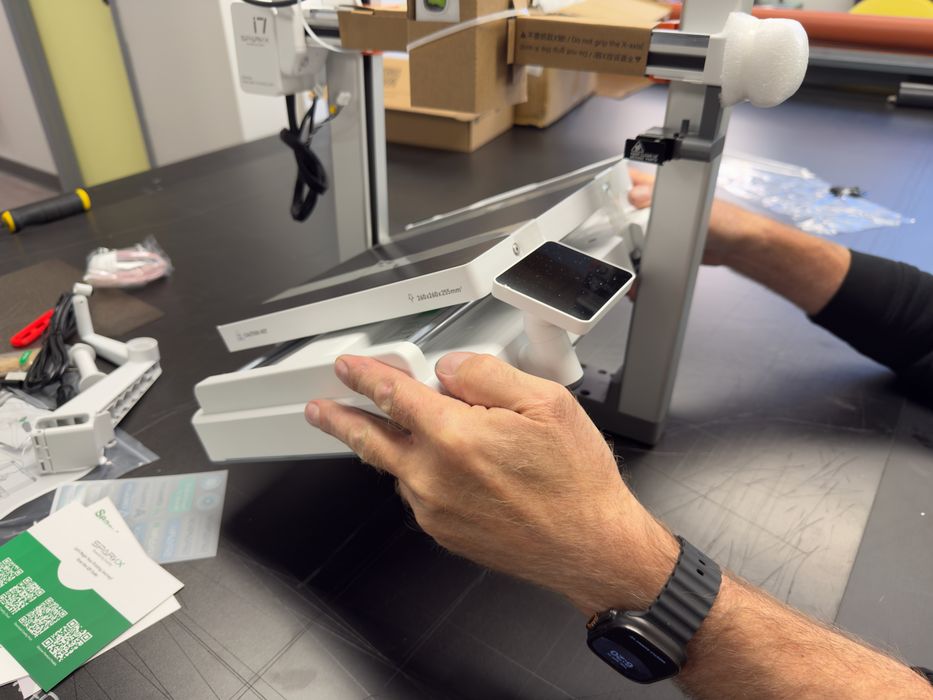
The main step in assembly is erecting the gantry. Because of Creality’s interesting new design here, it’s a bit different. You have to drop the base unit into the Z-axis as seen above.
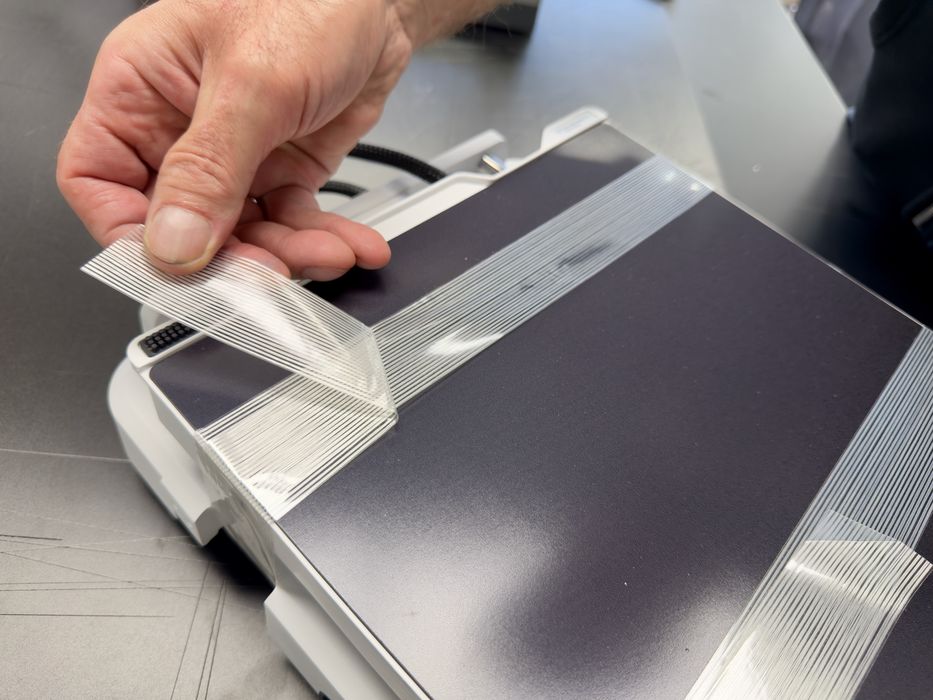
Of course, we forgot to de-tape the base unit before, so we had to pull it out and clean it off. There is always a lot of tape on these machines.
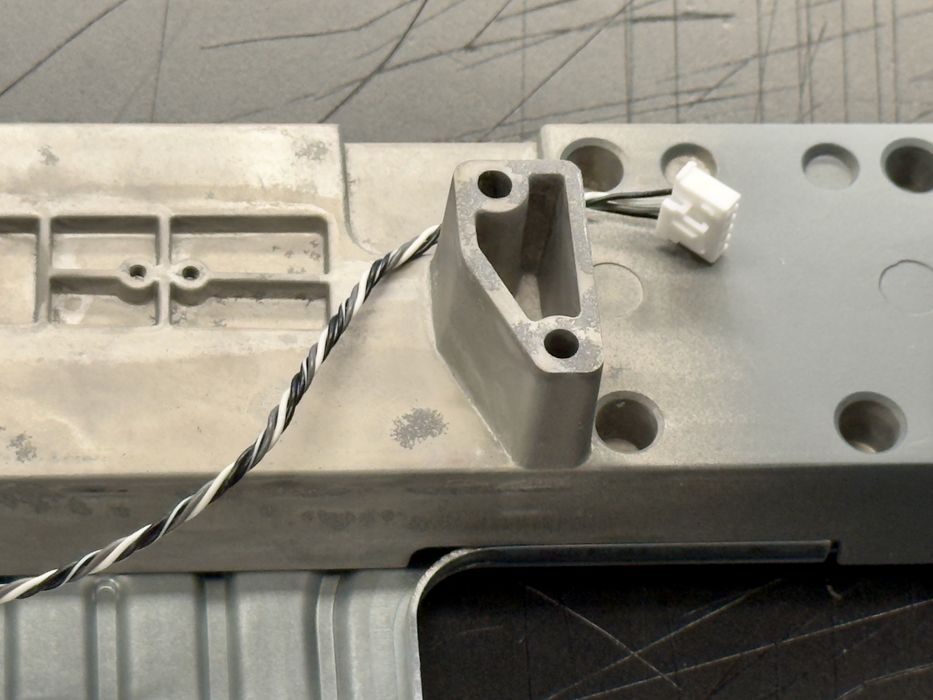
Here you can see what I’m talking about: Creality has built an incredibly strong base for the i7. This is where the Z-axis ties into the base. This is far different from the old days where aluminum extrusions were simply bolted on. This is a purpose-designed metal structure that fits together perfectly, and the result is an incredibly rigid frame.
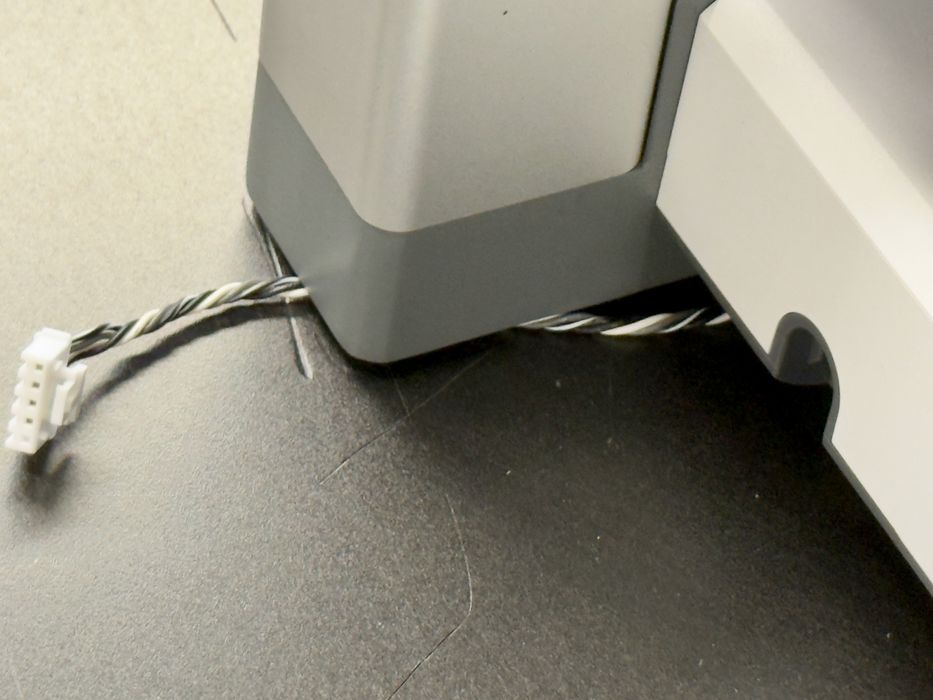
You should be careful when dropping the base unit in, because there are some small cables that can be caught underneath.
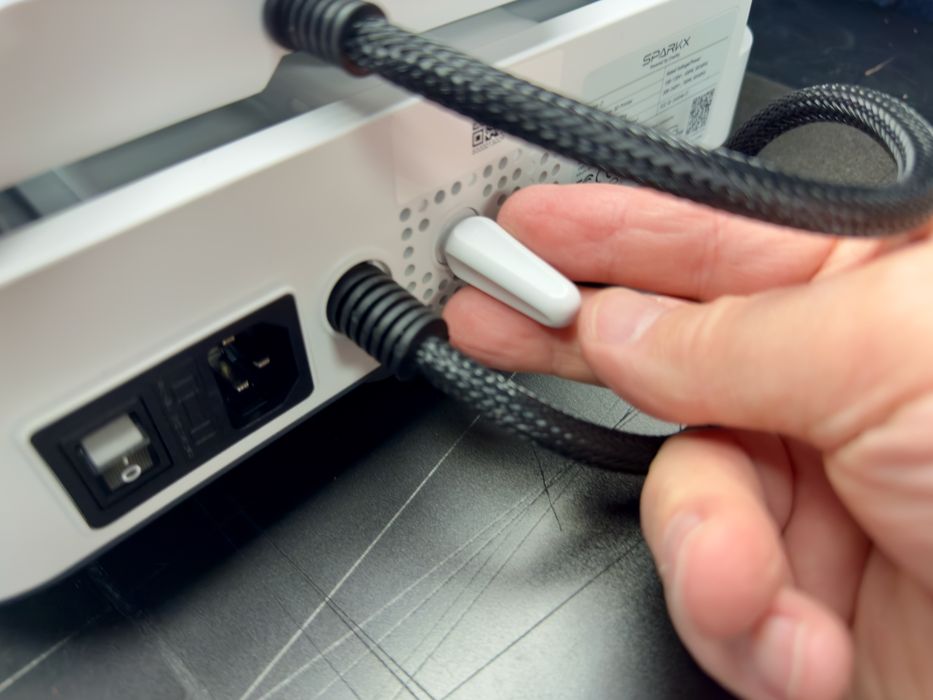
I noticed at the rear of the base unit there was a small post sticking out. This is a protector for the main cable. If you were to tip the machine backwards without this post, that cable would bend significantly, risking a short. This is precisely what caused the Bambu Lab A1 recall years ago, and here Creality has used a similar solution.
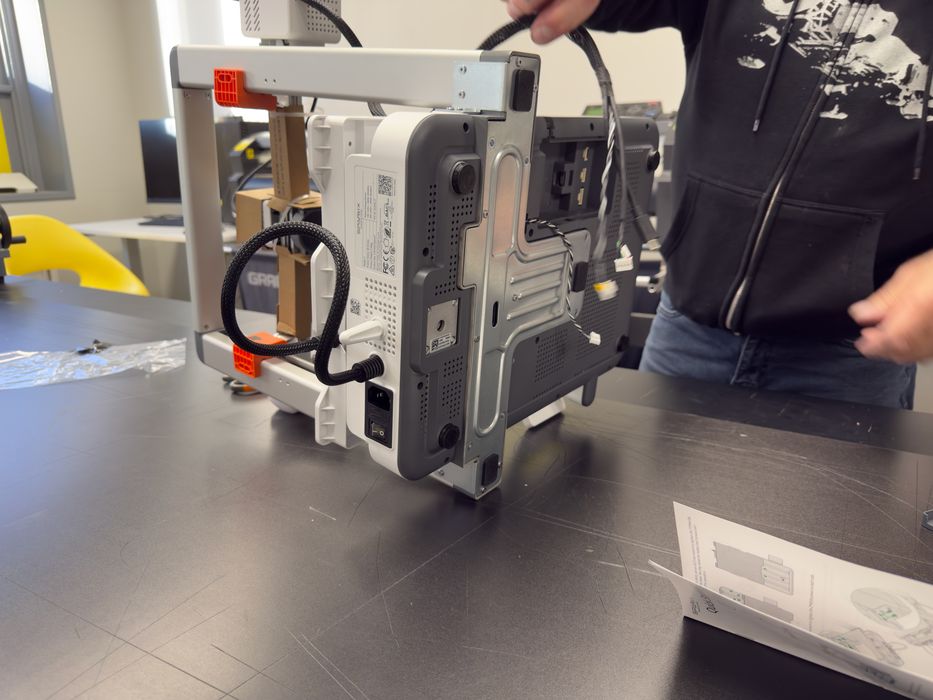
Underneath the machine you can see how well-designed the i7 is. Each part seems to be custom made for the device, unlike older machines that seemed to just staple together parts from an order book.
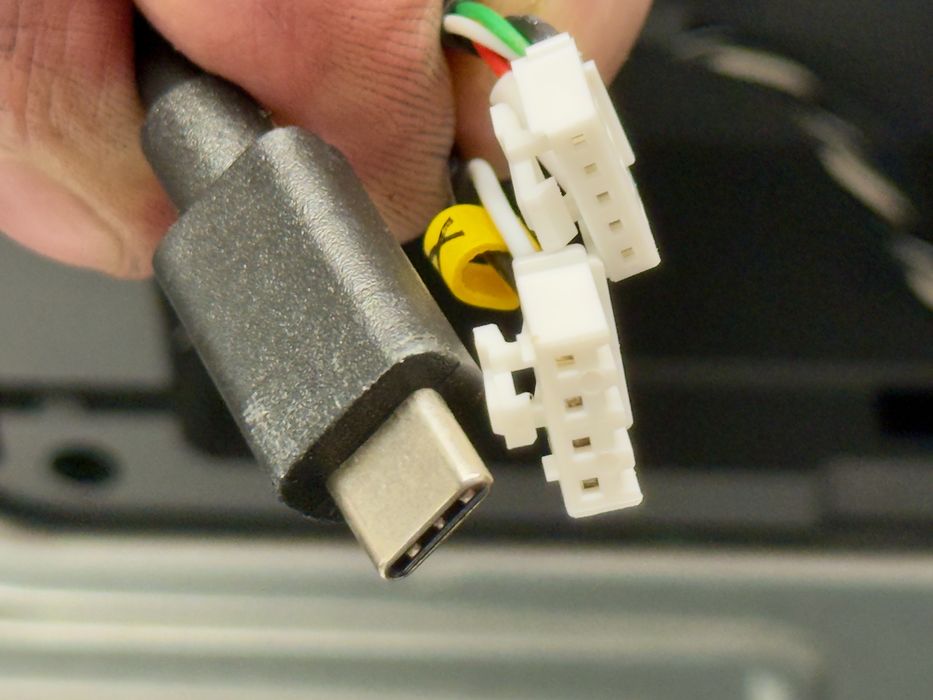
There are only a few cables to plug in, and they are hidden away underneath the machine. Easy to do.
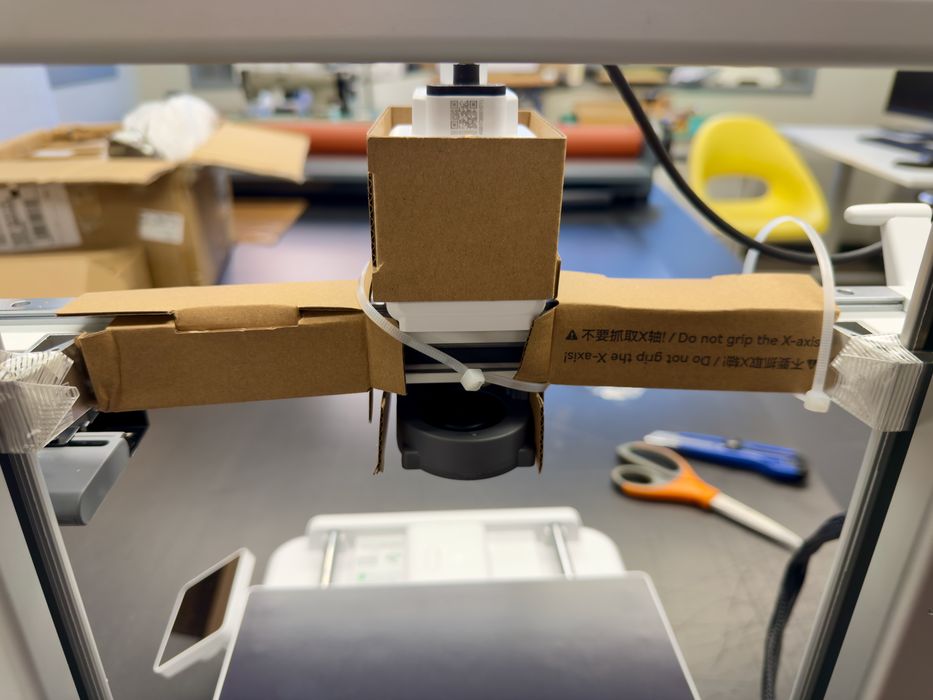
Here you can see the tremendous amount of packaging that goes into the i7. The X-axis is ready for winter with all this, which all must be removed.
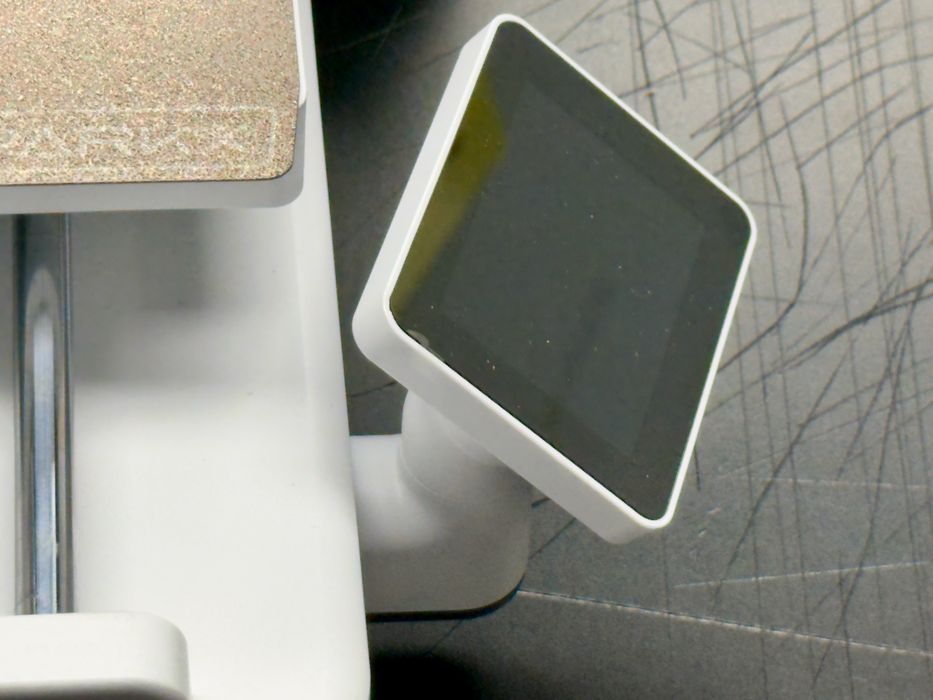
I thought for the longest time that the display was on the side of the printer, not convenient at all when using it. I was told by a colleague that it would swivel around, and it did! Sometimes it is the smallest detail that makes a big difference to the usability.
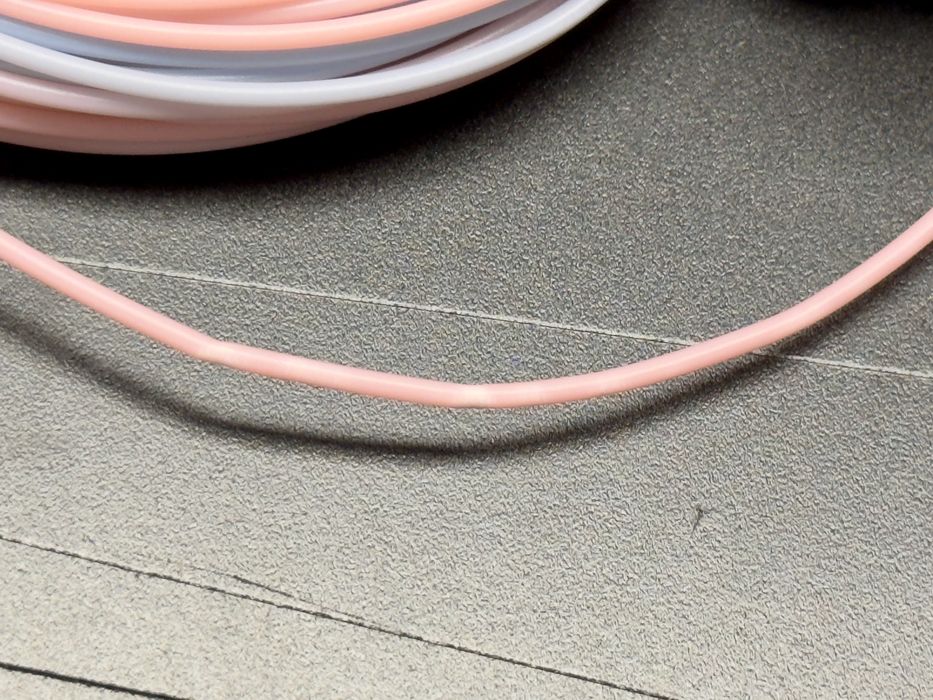
As usual, Creality ships the machine with a small coil of PLA, which is really useless. I thought we’d give it one more try, since it was there. But then I noticed that this filament was pretty banged up. Note the kinks in the filament. Would this print?
At that point, I was ready to power up the machine, and it did so right away.
Some 3D printers show a splash screen when booting up, and the i7 is one of them. But then, it went through a series of other splash screens; this is one of them. I guess they’re trying to make things a bit more entertaining while you’re waiting for the machine to become ready.
SPARKX i7 3D Printer Setup and Calibration
I tried to set up SPARKX i7 on the app, but it did not show the QR code from the Setting, Account tab from the printer display. See photos. I could never use the app for SPARKX i7.
When I was loading the multi-spool filament, I had a little trouble with the tubes not seeming to fit (photo) until I was told by a colleague that the dotted line in the diagram was the filament. (photo) It worked fine after a little bit of troubleshooting.
The first thing you have to do when powering up for the first time is bind the machine to your Creality account. This is done using their mobile Creality app and scanning the QR code presented. This works easily enough, but transferring control later on turned out to be a bit tricky.
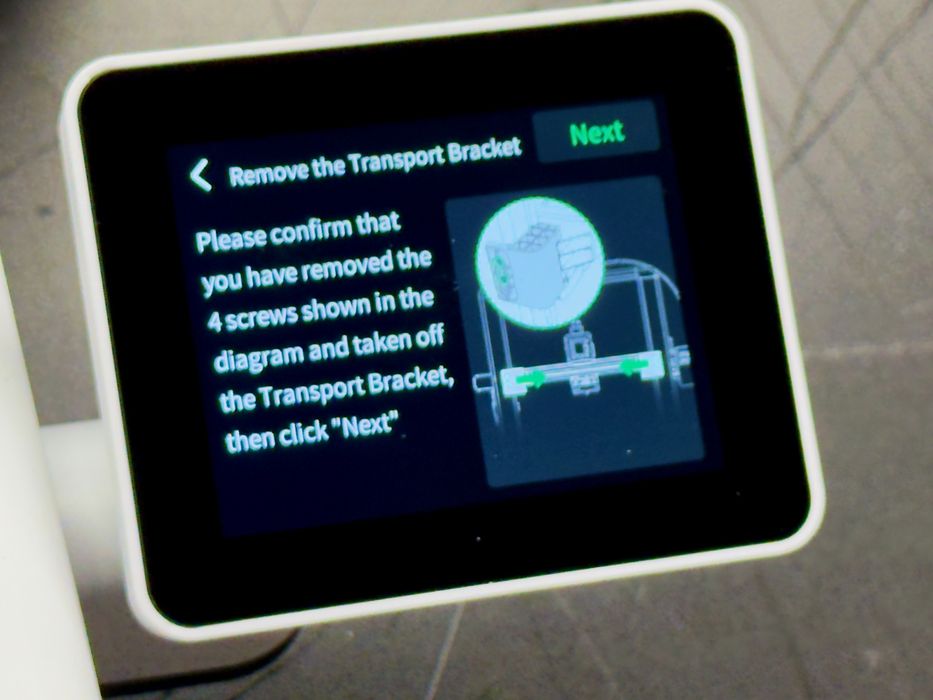
To make things a bit more foolproof, Creality presents a wizard right after startup. Here it’s asking to ensure that you’ve actually removed all the packaging materials from the i7. You can’t mess this up.
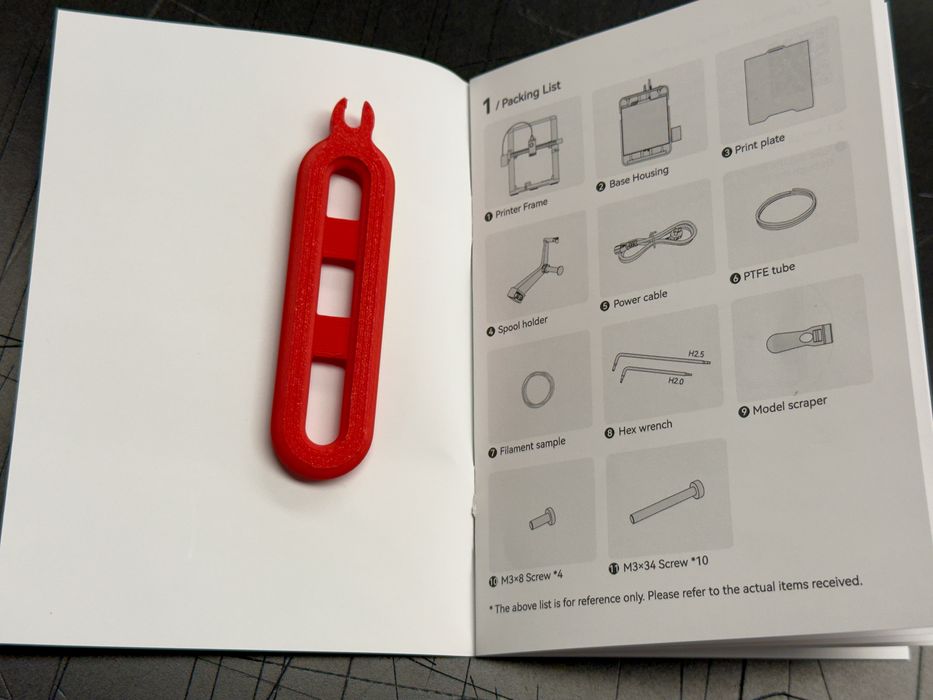
At this point I noticed this strange tool included in the shipment. It wasn’t listed on the parts manifest. What could it be?
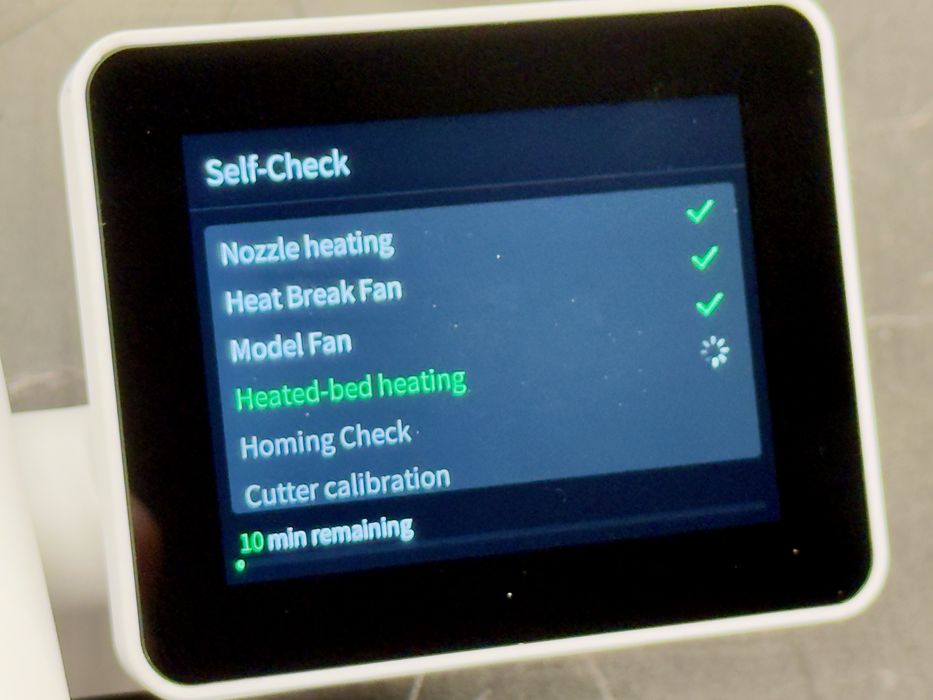
Then the inevitable self-check process began. This step can take quite a long time on some machines (one we’ve done recently took 40 minutes). Here the i7 is quite quick, taking only ten minutes!
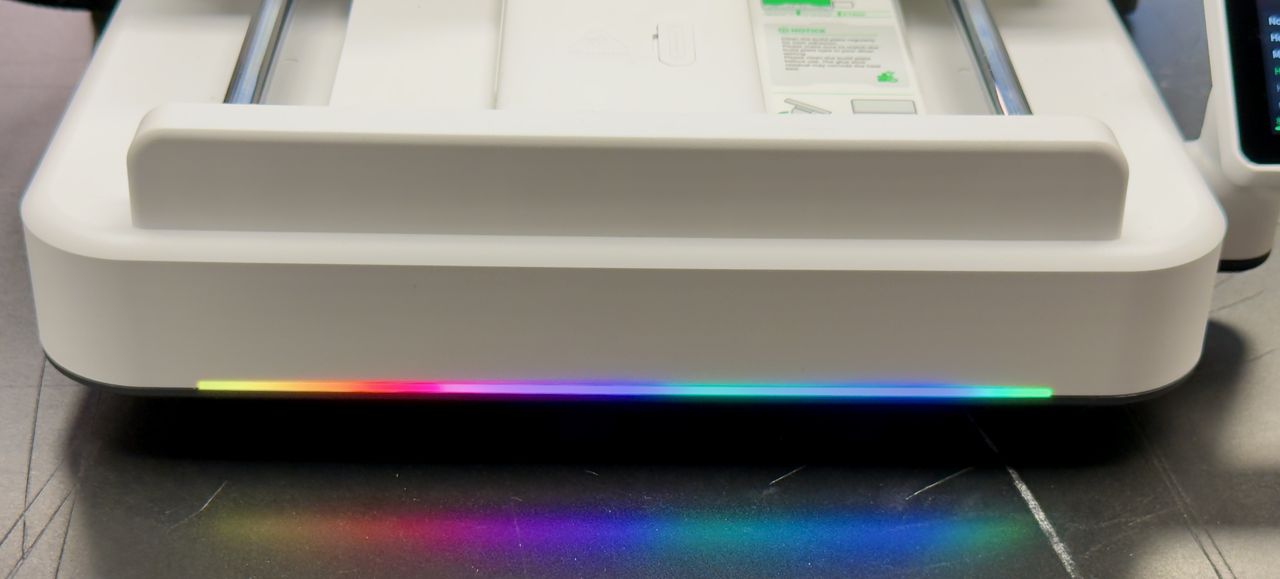
The machine was then powered on fully, and it was at this point I noticed the light bar. It’s located at the front of the base plate and can apparently be programmed with all kinds of different colors and sequences. Here you can see a rainbow. Later I saw it used to indicate different machine status levels.
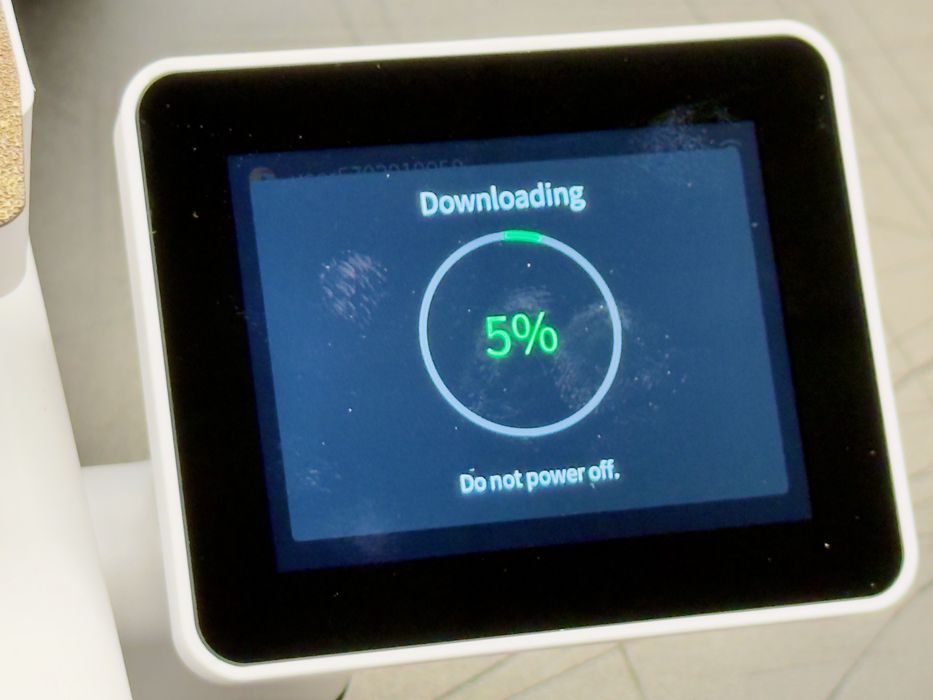
Oh oh, the usual firmware update started at that point. I don’t like these because they usually cause the machine to re-do the lengthy self-check process. I expected to wait another ten minutes, but it turns out that the i7 did NOT require another self-check after the firmware update! This could be the first machine we’ve tested that does this.
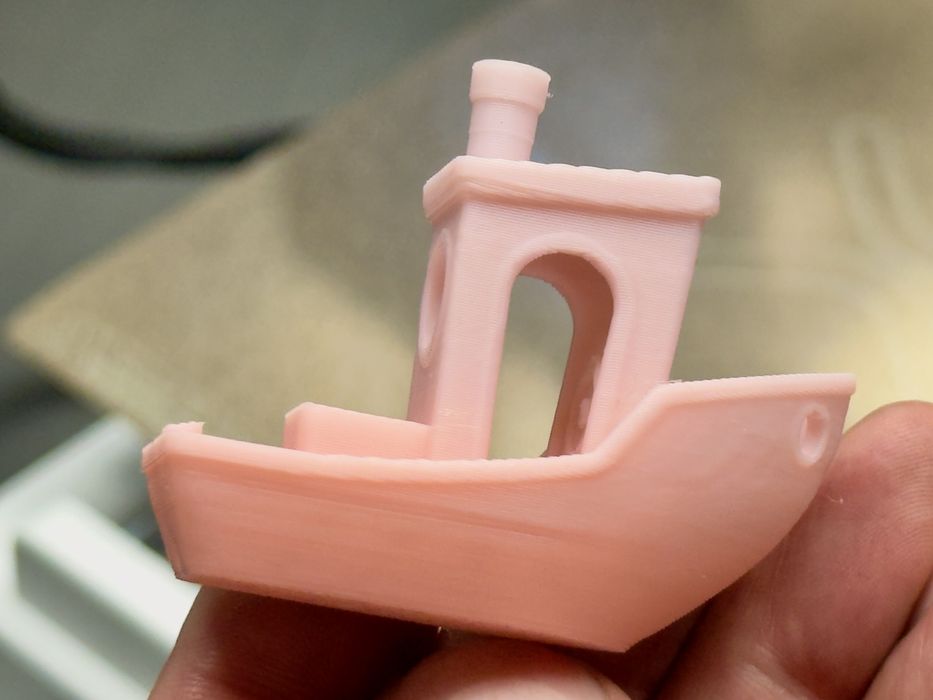
While we were figuring out how to put the nano together, we used that questionable filament to try printing a #3DBenchy. It turned out extremely well, as you can see in this image.
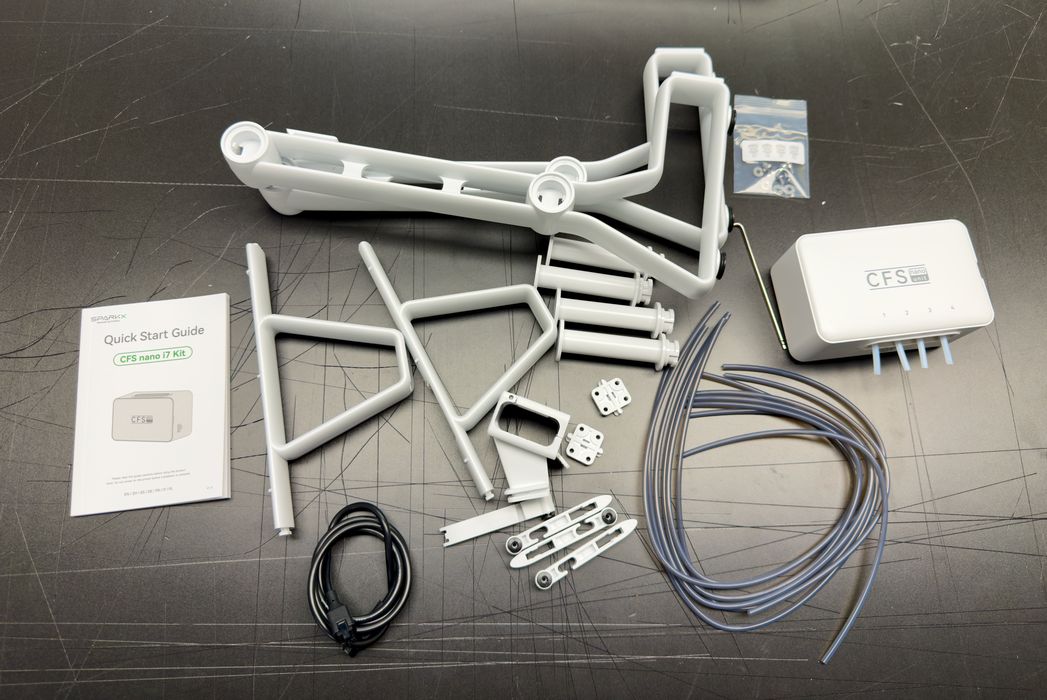
It was then I had to install the CFS nano. Without the nano, the i7 is a good single-colour 3D printer, but with the nano it becomes a four-color filament swapper.
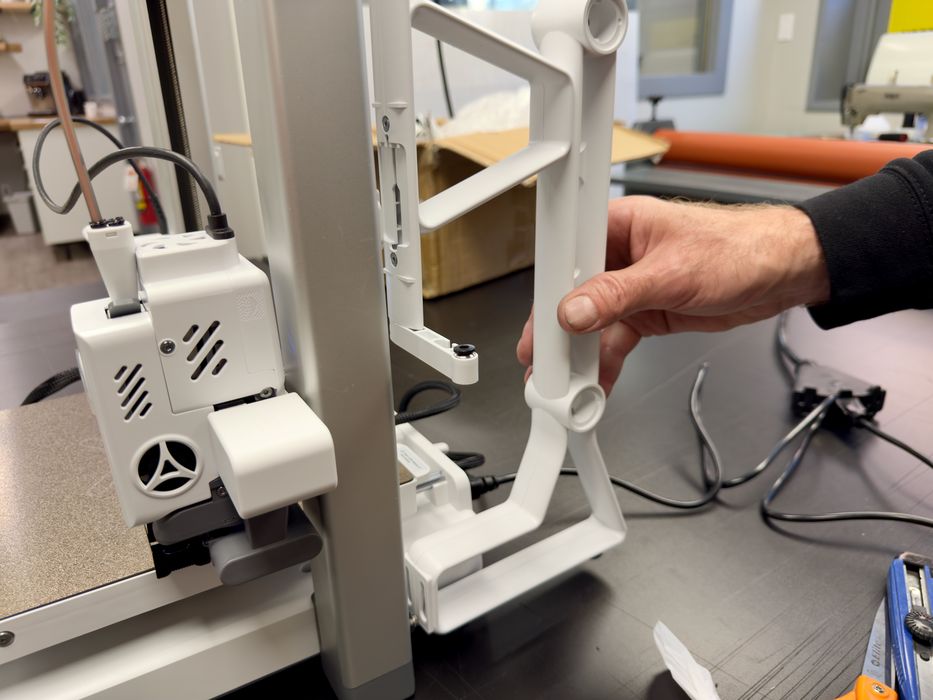
Four spools of material are required to feed the CFS nano, and where exactly do they go? They are mounted on the sides of the Z-axis, specifically on these brackets that must be installed. They are easy to install with some bolts on each side of the machine.
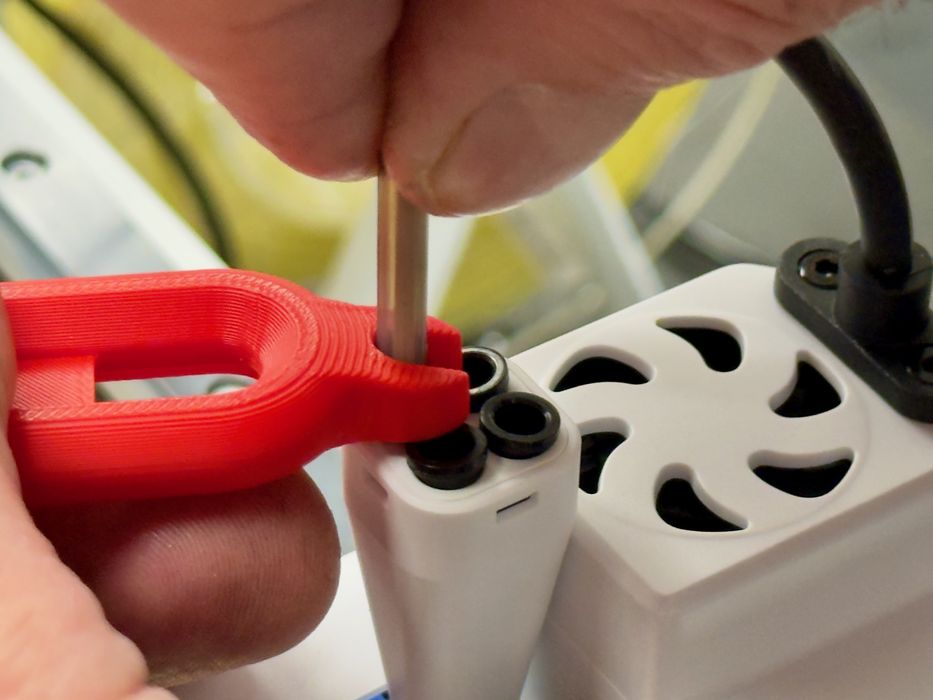
Then there are four PTFE tubes to install that guide filament from the spool to the CFS nano. Now I realized what that mysterious tool is for! It is used to unlock the tube connectors.
Note that there are two long and two short tubes, and you have to get them in the correct places.
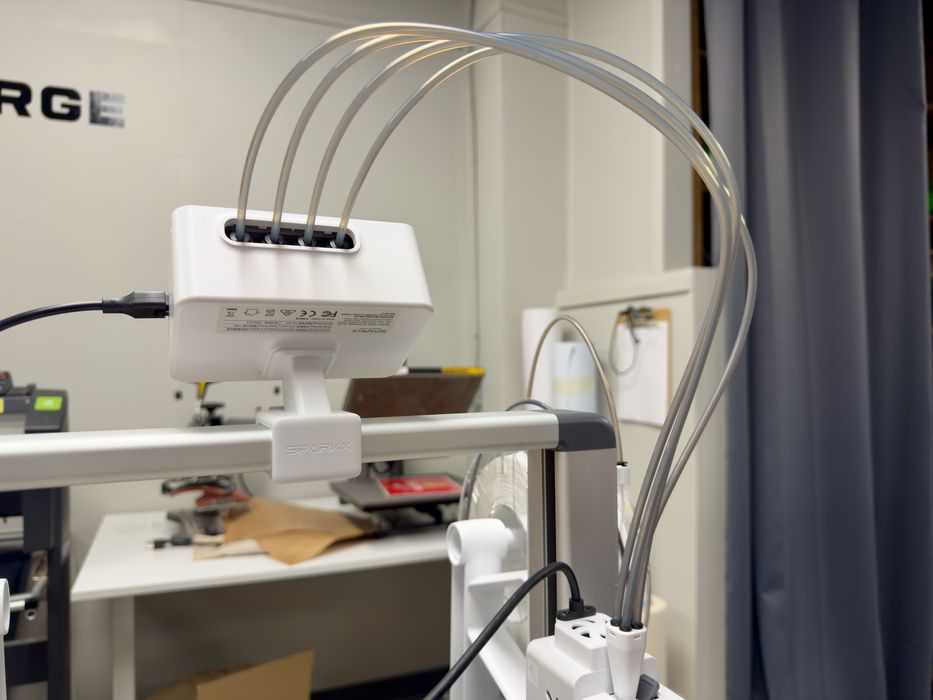
Finally, we had the CFS nano ready to go. It’s quite a small thing, bolted to the top of the i7. This is far smaller than any of the standalone CFS or CFS-equivalent systems that typically occupy a bunch of table space beside the 3D printer.
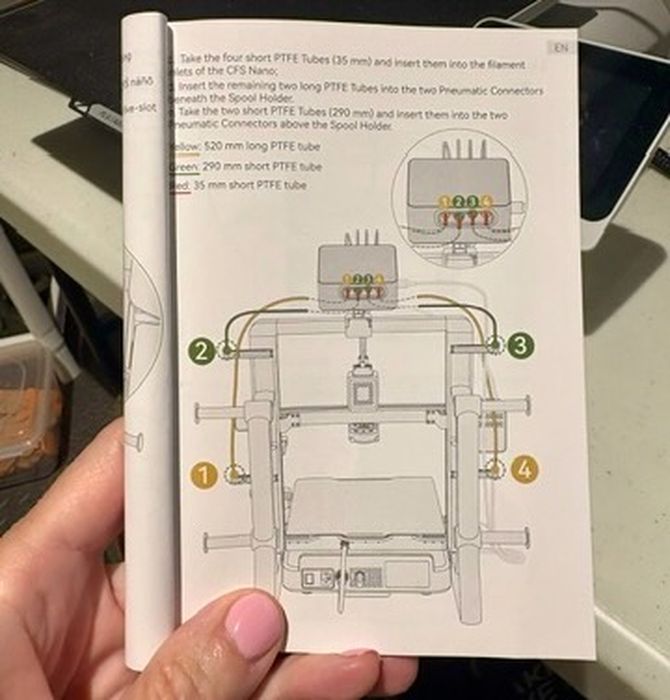
I then had to mount four spools of material. That should be easy, right? It is easy enough to physically mount spools on the hubs, but then there is the question of which spool should go where?
You have to pay VERY close attention to this diagram, which shows where those tubes have to go. If you don’t, then the software won’t properly understand which material is which and things won’t go well for you.
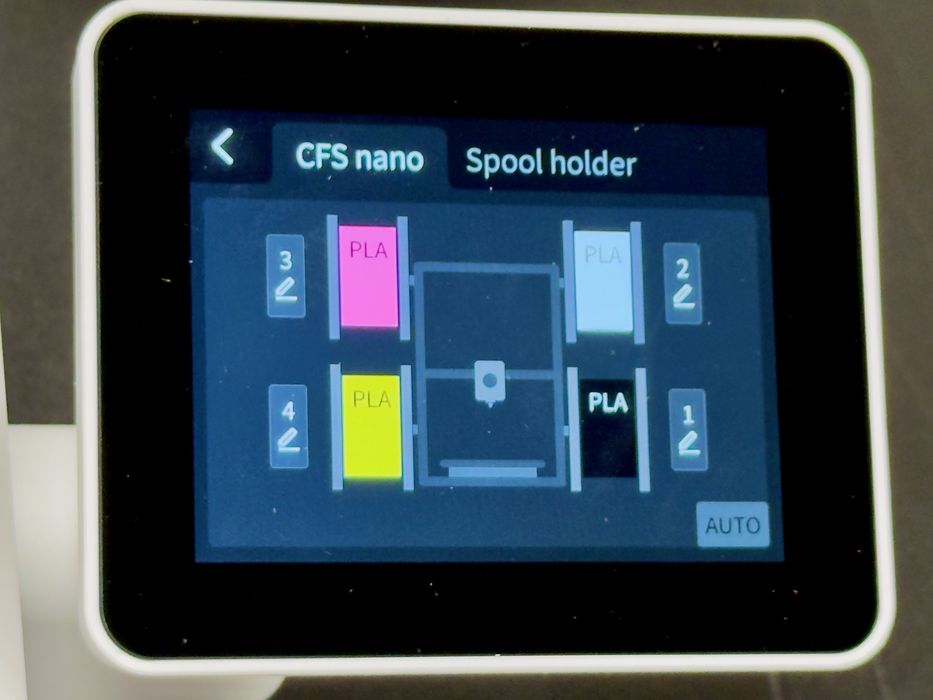
The spools I used were not RFID-enabled, so the machine could not directly read them. I actually never figured out how the RFID reading would work. Where is the reader?
Without RFID, you have to manually identify each spool to the i7. This is done on the control panel by editing each position. Again, you have to have put the tubes in the right place for this to work.
And at that point I was ready to print.
SPARKX i7 3D Printer Operations
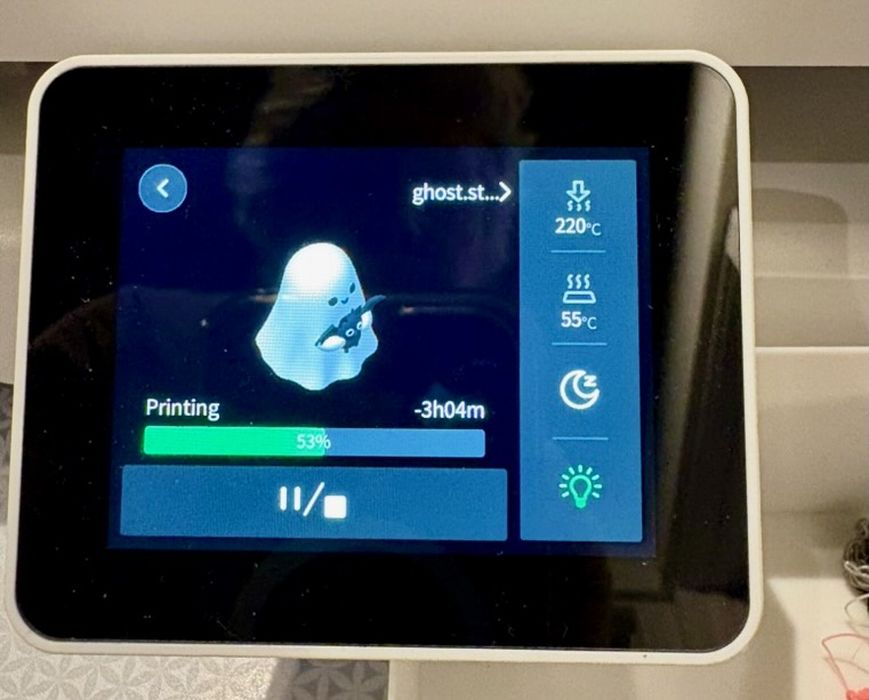
Printing is straightforward; you simply pick the 3D model from the sources on the front panel, or use the separate Creality Print software to send a job to the i7. When printing, the i7 shows a typical operations screen with the usual information.
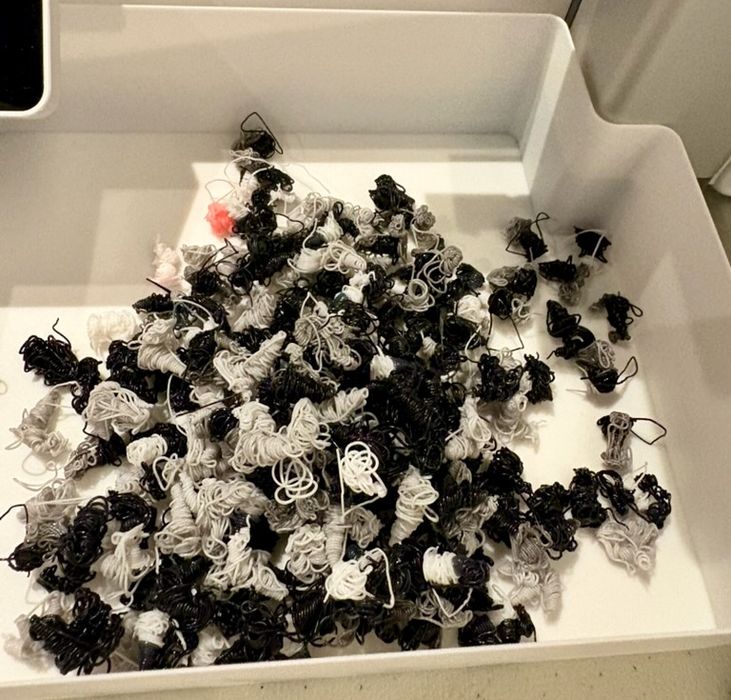
One caution: the i7 is a filament swapper, and it does produce waste. It’s not as much waste produced, but it does produce waste. You will need a poop bucket to catch it, as the machine ejects poops to the side of the machine when purging. Creality is correct in saying there is less waste, but some is still there.
This is part two of a three-part series; please read parts one and three.
Via Creality
https://creality.com/